
This section provides an introduction and walkthrough of DOConvert. It is an ideal starting point for new users.
Dashboard Overview
Once you log in to DOConvert, you will be greeted with the dashboard. The dashboard provides a comprehensive overview of your account and quick access to various features.
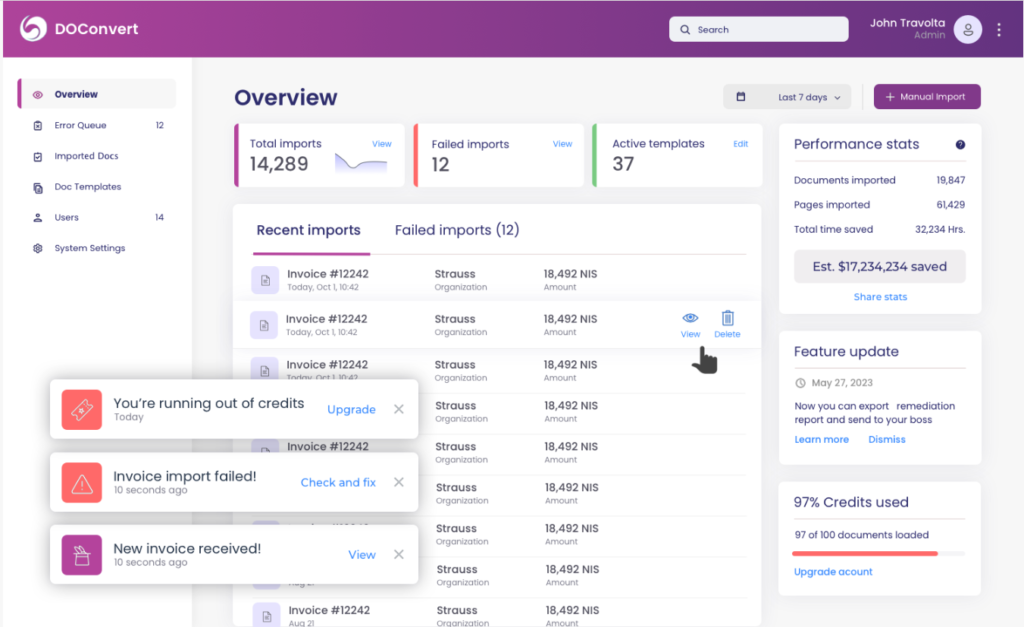
Main Screen Features
- Navigation Bar: Located at the top right, the navigation bar helps you quickly move between different sections of the application.
- Overview Section: This central area displays key insights, recent activities, and updates related to your account.
- Total Imports: Shows the total number of documents imported.
- Failed Imports: Displays the number of documents that failed to import.
- Active Templates: Indicates the number of active document templates.
- Recent Imports: Lists the most recent documents processed by the system.
- Error Queue: Shows documents that encountered issues during processing.
- Imported Docs: Displays all documents that have successfully been processed.
- Doc Templates: Manage and create document templates for different document types.
- Users Management: Manage user accounts and permissions within your organization.
- System Settings: Customize and configure system-wide settings.
Notifications
The dashboard also includes notifications to keep you informed:
- Running Out of Credits: Alerts you when you are low on credits, with an option to upgrade.
- Invoice Import Failed: Notifies you of any failed imports and provides options to check and fix issues.
- New Invoice Received: Informs you of new documents received, with a quick view option.
Performance Stats
On the right side of the dashboard, you can see performance statistics:
- Documents Imported: Total number of documents imported.
- Pages Imported: Total number of pages imported.
- Total Time Saved: An estimate of the total time saved using DOConvert.
- Estimated Savings: A financial estimate of the savings achieved.
Getting Started with DOConvert
Follow these steps to get started with DOConvert:
- Explore the Dashboard: Familiarize yourself with the layout and features available.
- Create a New Document Type: Click on the "New Document" button to start a new project.
- Import Data: Use the import feature to bring in data from external sources.
- Customize Settings: Adjust your account and document settings to suit your preferences.
- Get Help: If you have any questions, visit the help center or contact support.
By following these steps, you will be able to efficiently navigate and utilize the features of DOConvert.
Glossary of Key Terms
Understanding specific terms will help you navigate and use DOConvert V2.0 more efficiently. Here are some of the key terms related to our product:
- Document Types: These are the different kinds of documents that DC V2.0 can process. Examples include PDFs, Word documents, and Excel spreadsheets.
- Template: A pre-defined and customizable format in DC V2.0. Templates make it easier to maintain consistency across multiple documents.
- Fields: These are specific data points within a document that DC V2.0 can identify and extract. For example, a field could be the date, a name, or an invoice number.
- User Roles: These define the level of access a user has in DC V2.0. Typical user roles include Administrator, Editor, and Viewer.
- Tasks: Specific actions or operations that users perform in DC V2.0. An example of a task might be uploading a document, converting a file type, or editing a template.